See Live Support In Action
A walkthrough of every part of the system — from the agent's dashboard to the customer's portal and Discord integration.
The Agent's Command Center
Your support team manages everything from a dedicated web dashboard. Accept tickets, chat with customers, track performance, and configure your support system.
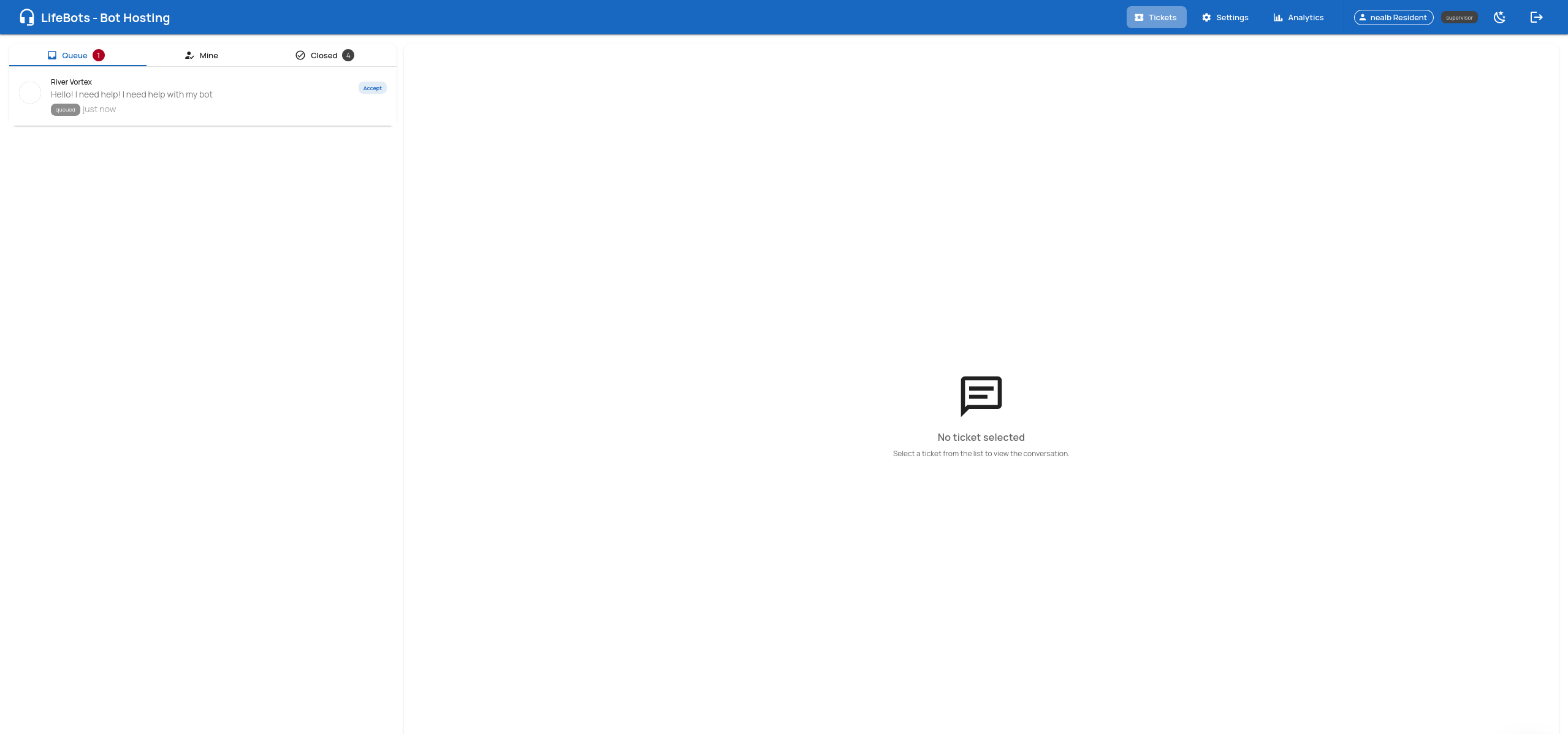
Ticket Queue
— See incoming tickets the moment they arrive
How it works
When a customer IMs your bot or submits a ticket through the web portal, it instantly appears in the Queue tab. Agents see the customer's name, their message preview, and the ticket source. One click on "Accept" assigns the ticket to that agent and opens the live chat.
- Real-time ticket notifications
- Queue, Mine, and Closed tabs for organization
- One-click accept to start helping immediately
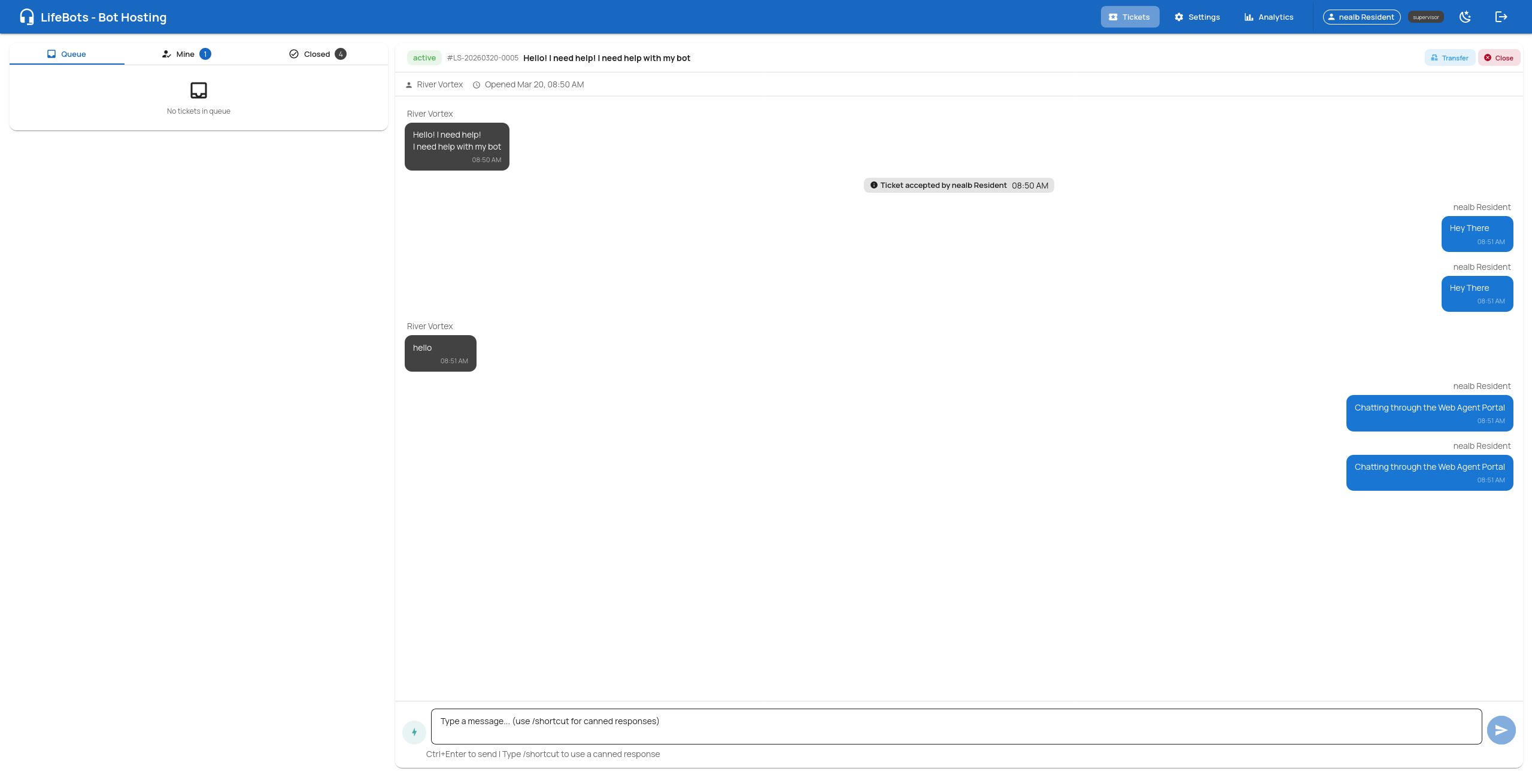
Live Chat
— Two-way conversation between agent and customer
How it works
After accepting a ticket, the agent sees the full conversation thread. Messages typed here are relayed through the bot to the customer in Second Life in real-time. Agents can also transfer tickets to other team members or close them when resolved.
- Messages flow: Agent Portal → Bot → Customer (and back)
- Canned responses with /shortcut for quick replies
- Transfer and Close actions in the header
- Full ticket context: customer name, ticket ID, open time
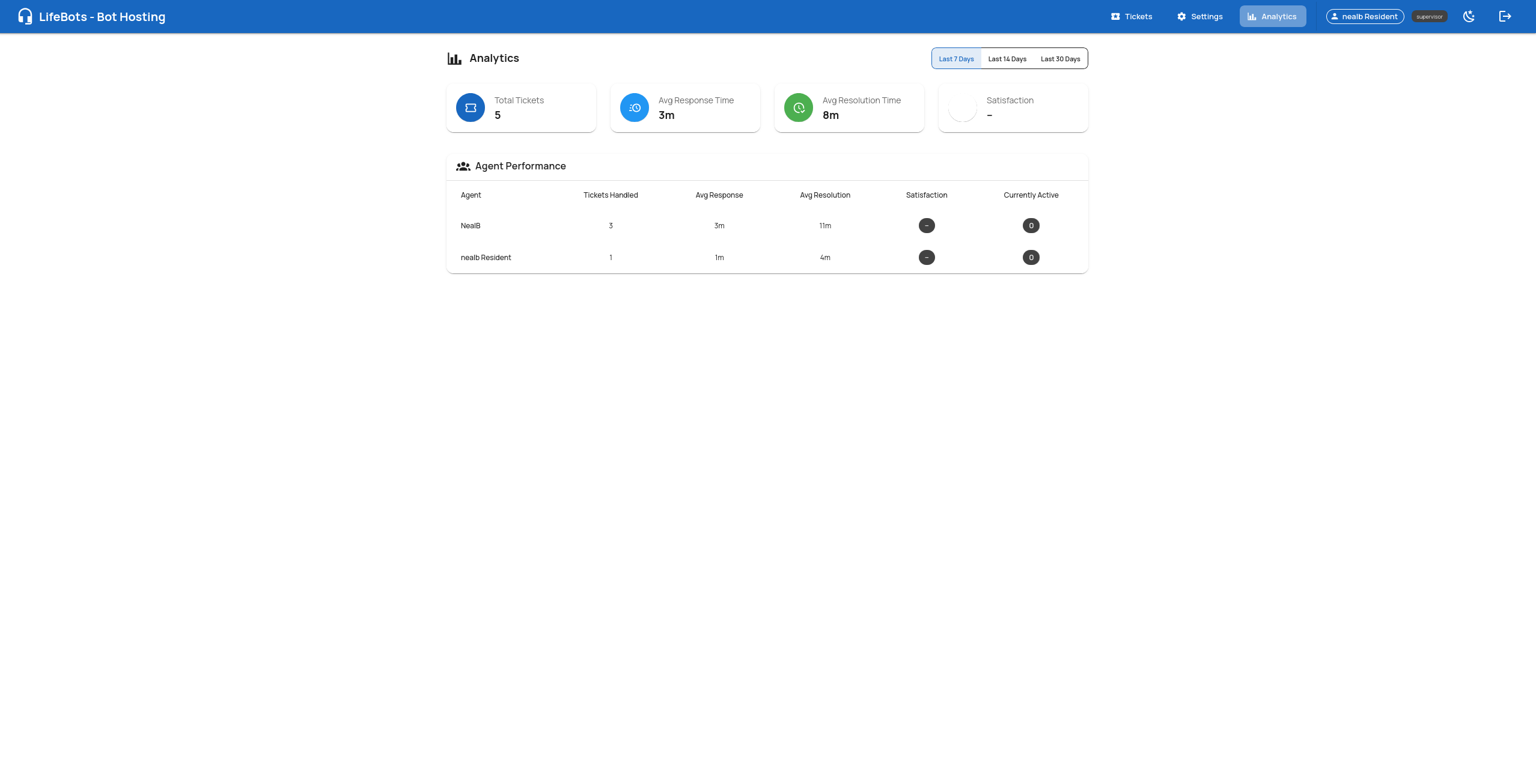
Analytics
What you see
- Total tickets, avg response time, avg resolution time
- Per-agent performance breakdown
- Filter by 7, 14, or 30 day ranges
- Customer satisfaction scores
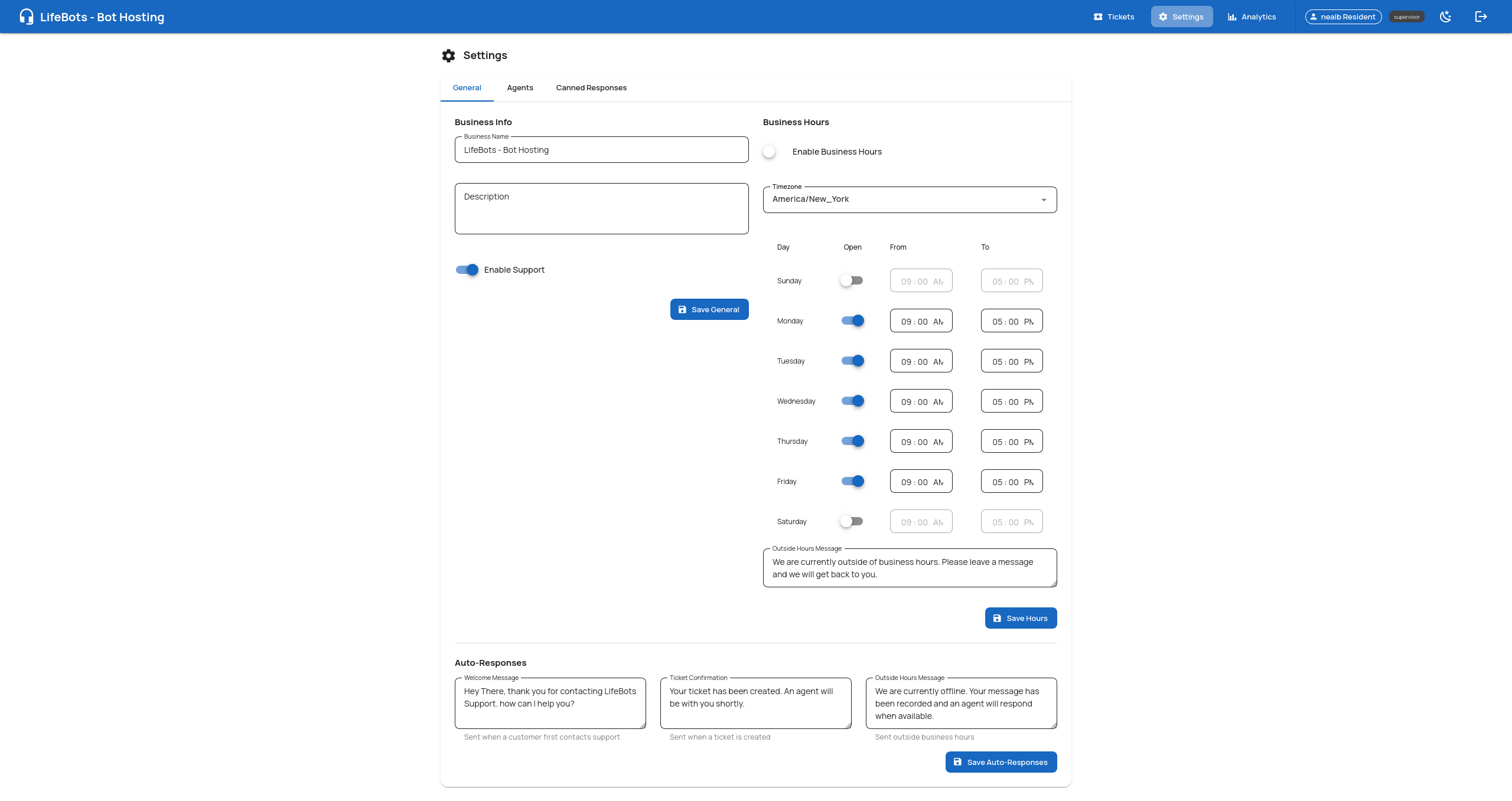
Settings
What you configure
- Business name and description
- Business hours with per-day scheduling
- Welcome, confirmation, and outside-hours messages
- Agent management and canned responses
Your Customers' Support Hub
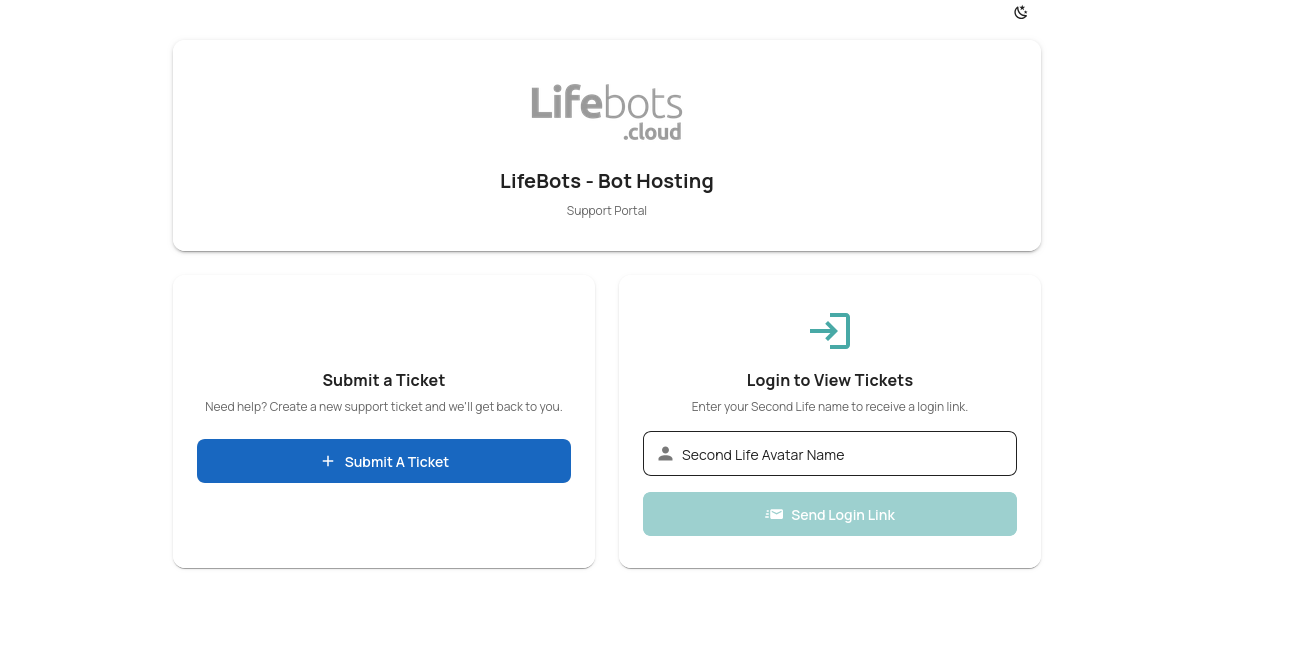
Each business gets a branded portal at yourname.mysl.support where customers can submit tickets and track their history — no account creation needed.
Support Home
How it works
Customers land on your branded support page. They can submit a new ticket immediately, or log in with their Second Life avatar name to view existing tickets. Authentication uses a magic link sent via the bot — no passwords needed.
Ticket History
How it works
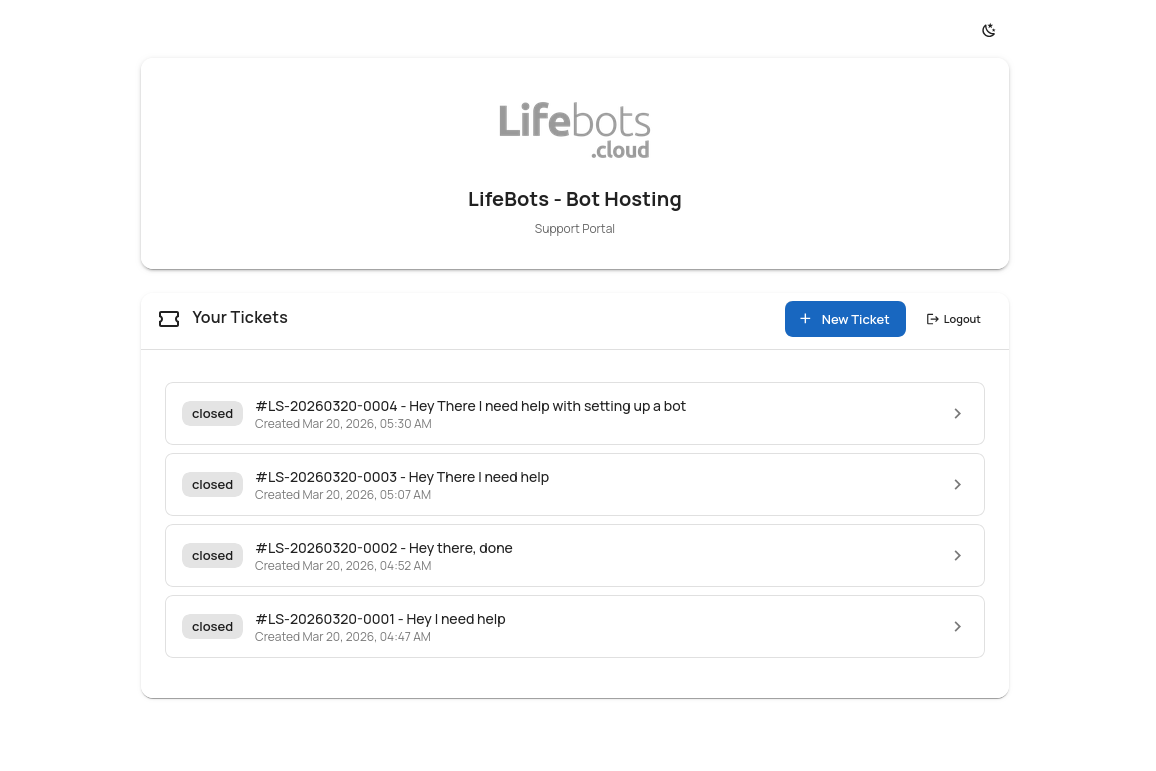
Once logged in, customers see all their tickets with status badges, ticket IDs, and creation dates. They can click into any ticket to view the full conversation or create a new one. Mobile-friendly so it works on any device.
Support Directly From Discord
Don't want to use the web portal? Your team can manage tickets entirely from Discord. Tickets appear as rich embeds with action buttons, and conversations happen in private threads.
Ticket Notifications
— Rich embeds with one-click actions
How it works
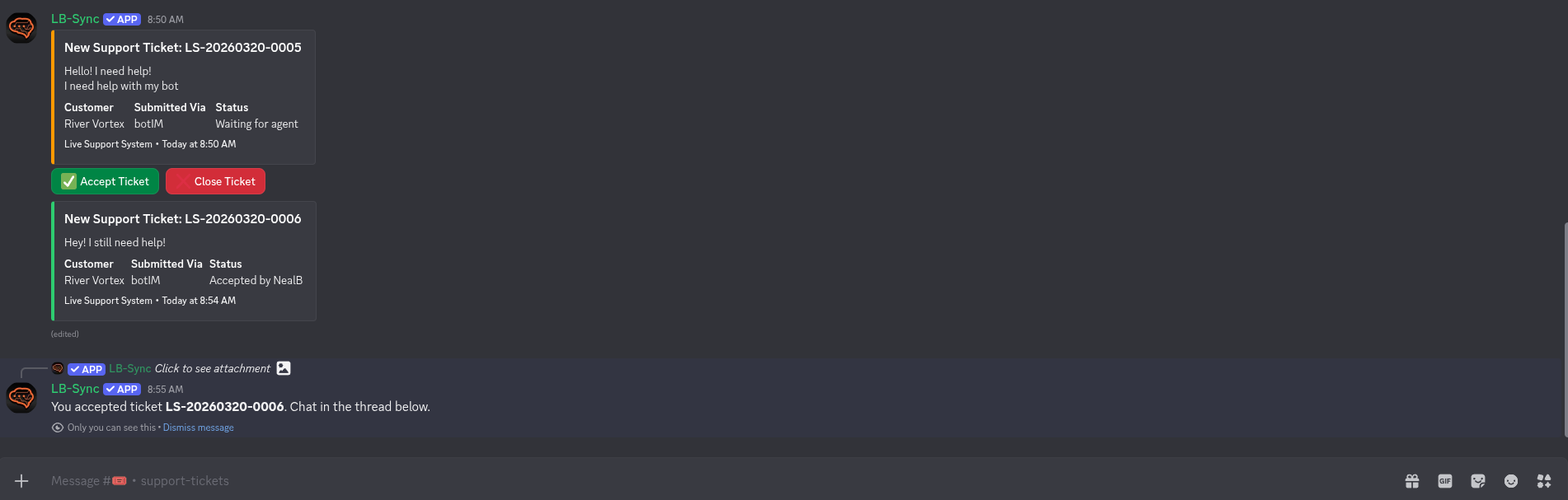
New tickets are posted to your designated support channel as rich embeds. Each embed shows the ticket ID, customer message, who submitted it, the channel (bot IM or web), and the current status. Agents click "Accept Ticket" to claim it or "Close Ticket" to resolve it directly.
- Ticket details: ID, customer, source, status
- Accept and Close buttons right on the embed
- Status updates in real-time as tickets are claimed
Private Threads
— Full conversations in isolated threads
How it works
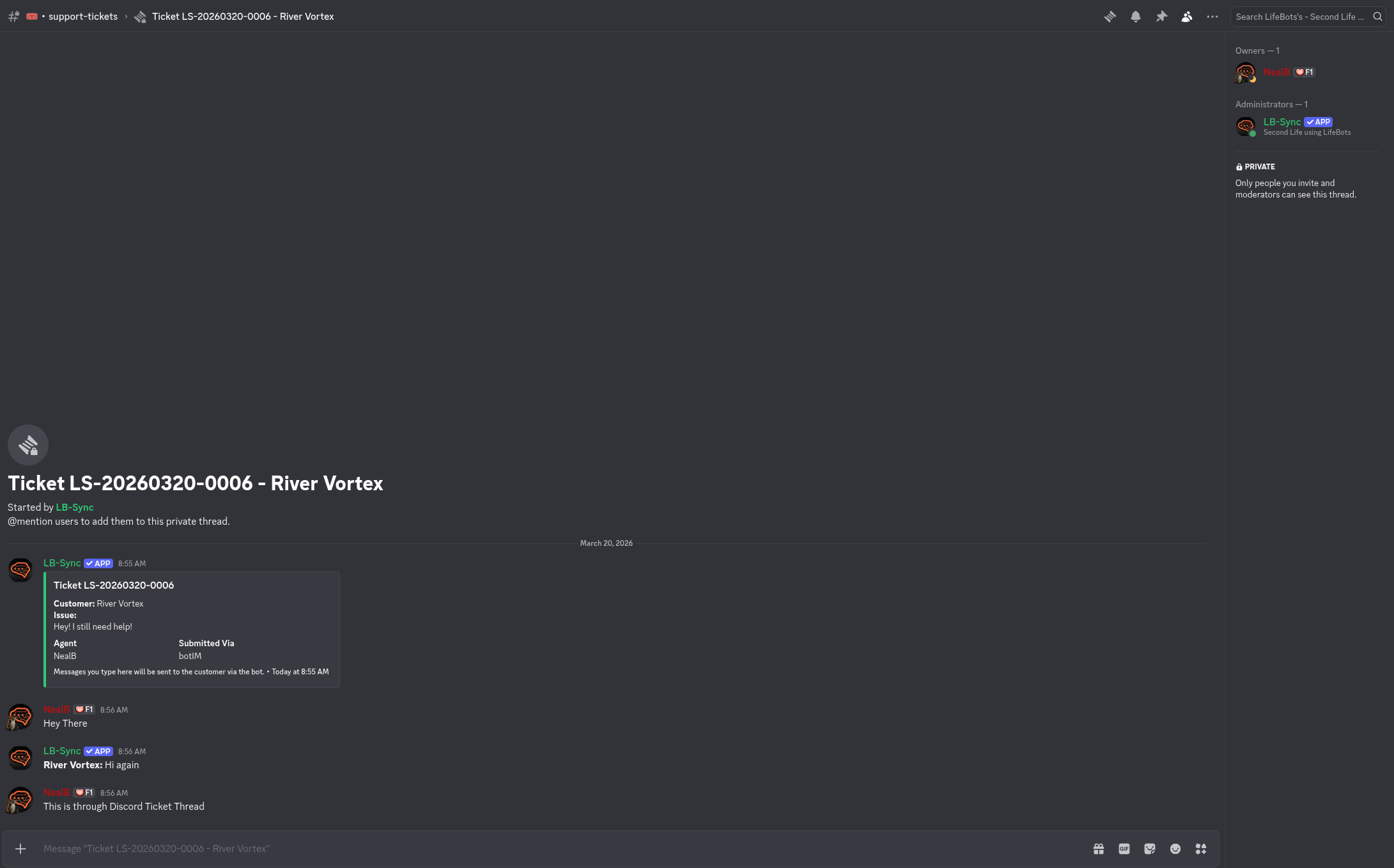
When an agent accepts a ticket, a private thread is created automatically. The thread shows the full ticket context, and messages flow both ways: the agent types in Discord, the customer receives it via the bot in Second Life, and vice versa. Only the assigned agent and moderators can see the thread.
- Private thread per ticket — clean and organized
- Two-way relay: Discord ↔ Second Life via bot
- Full ticket context pinned at the top
- Only assigned agent and moderators have access
Ready to Add Live Support to Your Bot?
Get started with LifeBots and give your Second Life business professional customer support.
Get Started on LifeBots